Is SysMain _really_ just a preload utility than can be stopped if you
have an SSD, as suggested in https://www.youtube.com/watch?v=5xK1qcjEvhc
(and probably others)? Is there any _dis_advantage to stopping it beyond
the theoretical lack of preloading?
I just tried stopping it, and my memory usage (Task Manager |
Performance | Memory) went from [this is fairly soon after a restart,
with only Thunderbird, Edge, and SpeedFan running) 4.6/7.4 GB (62%) yo
4.5 (61%); doesn't seem worth the bother. Would the extra 1% RAM
actually be used for anything anyway?
On Sun, 8/2/2026 11:18 AM, J. P. Gilliver wrote:[]
Is SysMain _really_ just a preload utility than can be stopped if you
have an SSD, as suggested in https://www.youtube.com/watch?v=5xK1qcjEvhc
(and probably others)? Is there any _dis_advantage to stopping it beyond
the theoretical lack of preloading?
Why doesn't Windows have a single button, where it gives
back all the RAM is doesn't really need ? :-) Asking for a friend.
I regularly turn off SysMain, but only in a certain usage[]The above YouTube suggests turning it off altogether - changing its
On 2026/8/2 18:24:8, Paul wrote:
On Sun, 8/2/2026 11:18 AM, J. P. Gilliver wrote:[]
Is SysMain _really_ just a preload utility than can be stopped if you
have an SSD, as suggested in https://www.youtube.com/watch?v=5xK1qcjEvhc >>> (and probably others)? Is there any _dis_advantage to stopping it beyond >>> the theoretical lack of preloading?
Why doesn't Windows have a single button, where it gives
back all the RAM is doesn't really need ? :-) Asking for a friend.
:-) indeed!>
I regularly turn off SysMain, but only in a certain usage[]The above YouTube suggests turning it off altogether - changing its
startup from Automatic to Disabled. does that sound like a good - or bad
- idea?
On Sun, 8/2/2026 2:29 PM, J. P. Gilliver wrote:[]
The above YouTube suggests turning it off altogether - changing its
startup from Automatic to Disabled. does that sound like a good - or bad
- idea?
How much difference in Seek Time, does the position
on an SSD make ? Answer: None at all.
If you have a HDD in the computer for the boot drive
(which I do in one case, as it is "roomy"), then letting
SysMain do its thing (SuperFetch) is likely a good thing
on occasion. But with an SSD or NVMe or anything with flash
and decent bandwidth, the storage isn't a bottleneck any more.
Paul
Is SysMain _really_ just a preload utility than can be stopped if you
have an SSD, as suggested in https://www.youtube.com/watch?v=5xK1qcjEvhc
(and probably others)? Is there any _dis_advantage to stopping it beyond
the theoretical lack of preloading?
I just tried stopping it, and my memory usage (Task Manager |
Performance | Memory) went from [this is fairly soon after a restart,
with only Thunderbird, Edge, and SpeedFan running) 4.6/7.4 GB (62%) yo
4.5 (61%); doesn't seem worth the bother. Would the extra 1% RAM
actually be used for anything anyway?
"J. P. Gilliver" <G6JPG@255soft.uk> wrote:
Is SysMain _really_ just a preload utility than can be stopped if you
have an SSD, as suggested in https://www.youtube.com/watch?v=5xK1qcjEvhc
(and probably others)? Is there any _dis_advantage to stopping it beyond
the theoretical lack of preloading?
I just tried stopping it, and my memory usage (Task Manager |
Performance | Memory) went from [this is fairly soon after a restart,
with only Thunderbird, Edge, and SpeedFan running) 4.6/7.4 GB (62%) yo
4.5 (61%); doesn't seem worth the bother. Would the extra 1% RAM
actually be used for anything anyway?
sysmain preloads likely-used apps into RAM. Not the same as prefetch
which is a list of pointers to used programs. RAM is still a lot faster
than HDDs, even SSDs, and NVMe SSDs are faster than SATA SSDs. You
didn't mention your hardware config. My guess is you have an old box
with only 8 GB of RAM of which almost 40% is wasted, er, free.
If you don't often rerun the same apps, the RAM cache of them won't
matter much. Nothing runs unless it is in RAM which means a program or
app has to get its image read from a file to [partially] load into RAM.
With sysmain running, how much free RAM do you have? Unused RAM is
wasted RAM, so use it. Only if you know you are going to load something
that eats up gobs of RAM do you need to have sufficient free space for
the new memory-hungry process.
The video misleads you into thinking used memory is wasted memory, and
that having more free RAM is somehow better. Wrong. Having a ton of
free memory means you are wasting a hardware resource.
If you really feel the need for more unused (free) memory, add more
memory modules on the motherboard, or replace the old ones with newer
ones of more capacity. Or, does your motherboard really have an upper
limit of supporting only 8GB of RAM?
As for CPU usage, whetehr 96% is high depends on the priority the
processes get for CPU usage. How many processes are running high
priority? You can test with sysmain enabled and disabled to see if you really sense an impact to responsiveness of your computer.
Rather than focus on sysmain, try disabling all the handholding for
boobs crap that Microsoft added to Windows, like Settings -> System -> Notification, and uncheck "Show Windows tips" or whatever they now call
their "suggestions" feature. I leave enabled:
- Show notifications on lock screen
- Show reminders and incoming VOIP calls on lock screen
- Allow notifications to play sounds
And disable the other notifications:
- Show me the Windows welcome experience <crap>
- Suggest ways <crap>
- Get tips, tricks, and suggestions <crap>
Go into the performance settings listed by sysdm.cpl under the System Properties wizard under the Advanced tab, and go to Performance
settings. You can adjust for best performance. Most of that crap is
just boob glitz, but I do leave enabled:
- Show thumbnails instead of icons
- Show translucent selection rectangle
- Show window contents while dragging (since that's all *I* am doing at
the moment)
- Smooth edges of screen fonts
All others are disabled. Oooh, menues that slide in an out. I'd rather
they appear immediately. Shadows under windows is moot since I use a
dark theme. Smooth scroll of listboxes means I have to wait longer to
see the rest of the list. You can decide how much glitz you want to
keep. There is an "Adjust for best performance" option that disables
all the glitz. You lose no functionality without the glitz.
You might want to try WinAero Tweaker and O&O Shutup to eliminate lots
of other glitz, but be careful with those tweakers as a feature you've
relied on could disappear.
You mention a few programs you often use, but are those really the only processes that are running when you checked memory use? You have zero startup programs? Use Sysinternals' AutoRuns to find them all. They
aren't all in the Startup folder. Some are defined in Task Scheduler.
Some are Winlogon events (load when you log into a Windows account). It
is far more comprehensive than the Startup tab in Task Manager.
However, even Task Manager's Startup tab could reveal processes that are starting up of which you were unaware.
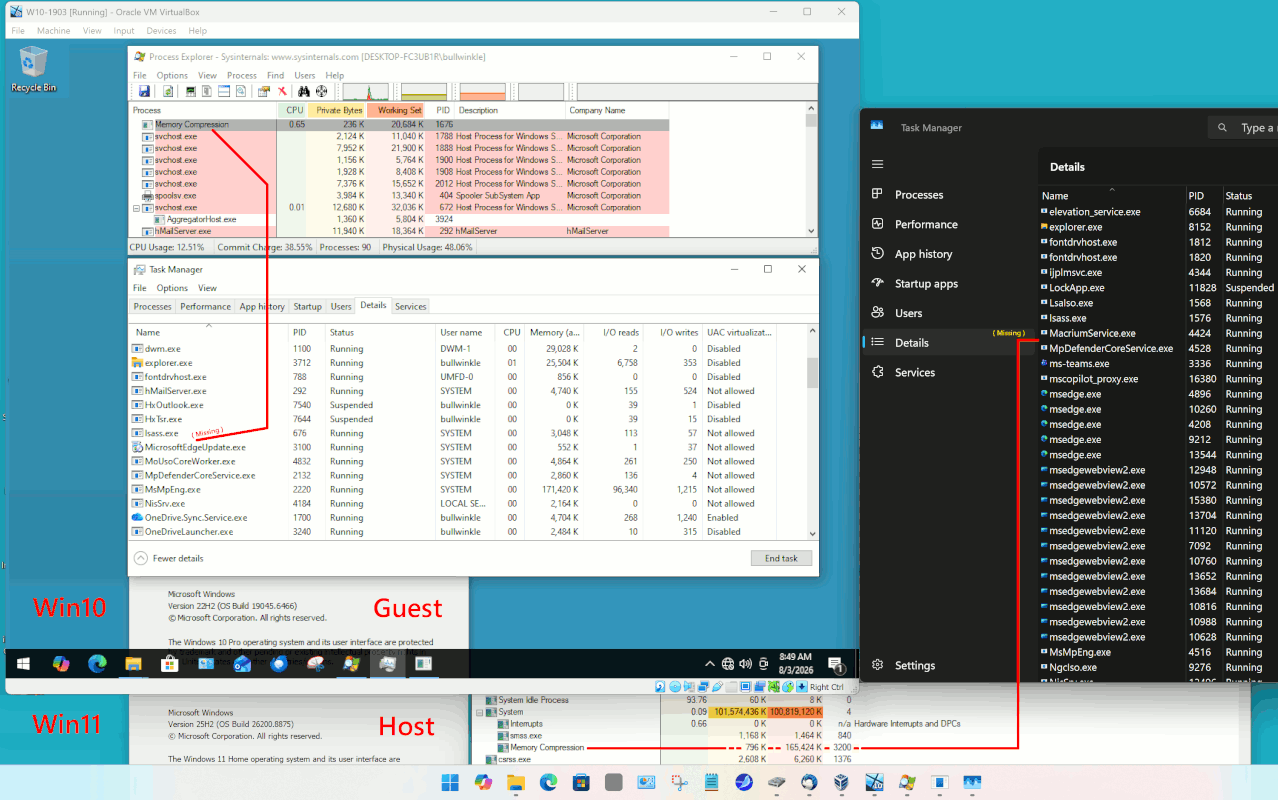
There are a couple pictures here, where it looks like the Memory
Compressor may be railed on one core. That can't be a good
compromise.
https://www.windowslatest.com/2026/08/01/microsoft-confirms-windows-11-is-a-memory-hog-promises-8gb-ram-pc-optimization-by-end-of-2026/
To view the Memory Compressor, you have to use Sysinternals Process
Explorer, which does not mind displaying it in the list of processes.
It does not show up in Task Manager, as the Task Manager refuses to
show processes which are missing values in some of the metadata
fields.
Paul <nospam@needed.invalid> wrote:
There are a couple pictures here, where it looks like the Memory
Compressor may be railed on one core. That can't be a good
compromise.
https://www.windowslatest.com/2026/08/01/microsoft-confirms-windows-11-is-a-memory-hog-promises-8gb-ram-pc-optimization-by-end-of-2026/
To view the Memory Compressor, you have to use Sysinternals Process
Explorer, which does not mind displaying it in the list of processes.
It does not show up in Task Manager, as the Task Manager refuses to
show processes which are missing values in some of the metadata
fields.
"Microsoft says this work is ongoing through the end of 2026."
So, what the article speaks of isn't yet available, or should be
considered experimental or a beta feature.
I didn't see a picture where "Memory Compressor" stood out as
identifiable. Which pic in your article shows it?
I have SysInternals' Process Explorer, but is running on Windows 10
(this newsgroup). No process is named "Memory Compressor". Using its search, nothing came up in PE on "compress".
https://www.ninjaone.com/blog/enable-or-disable-memory-compression-in-windows-11/
Mentions running Get-MMAgent in Powershell (which must be loaded with
admin privs). The output shows "MemoryCompression: False", so it isn't enabled on my Windows 10 host. They say to run Enable-MMAgent -mc to
enable it which then had it show up in PE. Memory used by this process
is miniscule, and PE doesn't show any CPU usage. I don't see the point
of using this on a 64GB RAM setup (which is now down to 32GB because one module went bad, and the 3 module setup has problems). So, it is
something that can be enabled/disabled on Windows 10, but MS mentions
Windows 11. The ninjaone article also mentions sysmain helps with
Memory Compression. Not sure how unless the apps preloaded into RAM are getting compressed by Memory Compression with the added CPU overhead.
From research, looks like memory compression is only utilized against low-priority processes, so those consume less RAM, and maybe you won't
notice the CPU overhead for them. If the Memory Compression process is eating up gobs of CPU, you have too little RAM to start with, and
everything gets compressed. That's why users with little RAM note this process has high CPU usage: well, it's using CPU to compress and
decompress all processes' images in the compressed RAM storage area.
Rather than using more CPU overhead to compress/decompress process
images in RAM, seems adding more RAM would be a better solution. When
was the last time the maximum RAM that could be added to the slots in a
mobo was only 8GB? Might be a problem in some old laptops, but what
Gilliver has is unknown, so maybe he is restricted to only 8 GB RAM. I
don't bother using compression on my drives, either. Instead I get
bigger drives.
On Sun, 8/2/2026 9:15 PM, VanguardLH wrote:[]
If you don't often rerun the same apps, the RAM cache of them won't
matter much. Nothing runs unless it is in RAM which means a program or
app has to get its image read from a file to [partially] load into RAM.
With sysmain running, how much free RAM do you have? Unused RAM is
wasted RAM, so use it. Only if you know you are going to load something
that eats up gobs of RAM do you need to have sufficient free space for
the new memory-hungry process.
The video misleads you into thinking used memory is wasted memory, and
that having more free RAM is somehow better. Wrong. Having a ton of
free memory means you are wasting a hardware resource.
If you really feel the need for more unused (free) memory, add more
memory modules on the motherboard, or replace the old ones with newer
ones of more capacity. Or, does your motherboard really have an upper
limit of supporting only 8GB of RAM?
As for CPU usage, whetehr 96% is high depends on the priority the
processes get for CPU usage. How many processes are running high
priority? You can test with sysmain enabled and disabled to see if you
really sense an impact to responsiveness of your computer.
Rather than focus on sysmain, try disabling all the handholding for
boobs crap that Microsoft added to Windows, like Settings -> System ->
Notification, and uncheck "Show Windows tips" or whatever they now call
their "suggestions" feature. I leave enabled:
- Show notifications on lock screen
- Show reminders and incoming VOIP calls on lock screen
- Allow notifications to play sounds
And disable the other notifications:
- Show me the Windows welcome experience <crap>
- Suggest ways <crap>
- Get tips, tricks, and suggestions <crap>
Go into the performance settings listed by sysdm.cpl under the System
Properties wizard under the Advanced tab, and go to Performance
settings. You can adjust for best performance. Most of that crap is
just boob glitz, but I do leave enabled:
- Show thumbnails instead of icons
- Show translucent selection rectangle
- Show window contents while dragging (since that's all *I* am doing at
the moment)
- Smooth edges of screen fonts
All others are disabled. Oooh, menues that slide in an out. I'd rather
they appear immediately. Shadows under windows is moot since I use a
dark theme. Smooth scroll of listboxes means I have to wait longer to
see the rest of the list. You can decide how much glitz you want to
keep. There is an "Adjust for best performance" option that disables
all the glitz. You lose no functionality without the glitz.
You might want to try WinAero Tweaker and O&O Shutup to eliminate lots
of other glitz, but be careful with those tweakers as a feature you've
relied on could disappear.
Thanks for that - a while since I'd run it; I've turned off some moreYou mention a few programs you often use, but are those really the only
processes that are running when you checked memory use? You have zero
startup programs? Use Sysinternals' AutoRuns to find them all. They
aren't all in the Startup folder. Some are defined in Task Scheduler.
Some are Winlogon events (load when you log into a Windows account). It
is far more comprehensive than the Startup tab in Task Manager.
However, even Task Manager's Startup tab could reveal processes that are
starting up of which you were unaware.
There are a couple pictures here, where it looks like the Memory Compressor may be railed on one core. That can't be a good compromise.
On 2026/8/3 7:57:58, Paul wrote:
On Sun, 8/2/2026 9:15 PM, VanguardLH wrote:[]
If you don't often rerun the same apps, the RAM cache of them won't
matter much. Nothing runs unless it is in RAM which means a program or
app has to get its image read from a file to [partially] load into RAM.
As I don't currently have a smartphone, I don't think I run "apps" - but
that term seems to have replaced a lot of words in a lot of places :-(.
What I normally have running that I have manually started since boot: Thunderbird (for mail and news); a browser (Edge) with about 15-25 tabs
open; often Everything; often a command prompt (so I can run my yt-dlp
batch file); and, this weather, SpeedFan (as a monitor, so I can see
whether to turn on the big desk fan, the internal one and fan tray not
really being up to it [it's over 30 in here a lot]). In addition to
that, various things which I have installed and start with Windows, none
of which I can see using much resources - noisy keyboard and mouse, ClipDiary, System Scheduler, BitMeter2 - I think that's about it. Oh,
and AVG, which is the compromise I've decided suits me for that sort of thing.>>
With sysmain running, how much free RAM do you have? Unused RAM is
_Without_ it running, currently using 4.7/7.4 GB (64%) - apparently rock-steady. I was going to start it and tell you what difference it
made, but its Start function is greyed out; however, the other day when
I stopped it, it made 0.1 GB/1% difference, so I doubt it makes much difference either way.
wasted RAM, so use it. Only if you know you are going to load something >>> that eats up gobs of RAM do you need to have sufficient free space for
the new memory-hungry process.
The video misleads you into thinking used memory is wasted memory, and
that having more free RAM is somehow better. Wrong. Having a ton of
free memory means you are wasting a hardware resource.
Agreed; I was already aware (probably from here, maybe you or Paul)
that, counter-intuitively, unused RAM isn't necessarily a good thing (probably a bad thing, on balance, for the reason you give).>>
If you really feel the need for more unused (free) memory, add more
memory modules on the motherboard, or replace the old ones with newer
ones of more capacity. Or, does your motherboard really have an upper
limit of supporting only 8GB of RAM?
Quite possibly. It's a Lenovo ideapad - according to Speccy (yes, I
know, but I need such information so rarely that I CBA to install
something more modern) it's Model "Toronto 5B1 (Socket FP4)", with an
AMD K15 IMC revision 00, BIOS date 2017/4/17. Oh, apparently it has 2
memory slots only one of which is used, so assuming Speccy is right, I
_could add more - but I am not aware of the machine struggling for
almost anything I do on it; the only time I'm aware of waiting for it,
other than where the delay is internet- or storage-related, is when I do certain video or audio processing tasks, and there it does most things
within few enough seconds that I am not bothered. Yes, I'm sure it's
ancient - but it does what I want, fast enough for me.>>
As for CPU usage, whetehr 96% is high depends on the priority the
processes get for CPU usage. How many processes are running high
priority? You can test with sysmain enabled and disabled to see if you
really sense an impact to responsiveness of your computer.
According to Task Manager, it (which TM says is "AMD A19-9600P RADEON
R5, 10 COMPUTE CORES 4C+gG"), at present it seems to be bouncing between
9% and 67%, mostly in the 20s and 30s. As I said above, I'm not aware of
any responsiveness problem most of the time anyway, so I doubt I'd be
able to tell about SysMain. I could turn it back to Automatic, so it'll
start next reboot.>>
Rather than focus on sysmain, try disabling all the handholding for
boobs crap that Microsoft added to Windows, like Settings -> System ->
Notification, and uncheck "Show Windows tips" or whatever they now call
their "suggestions" feature. I leave enabled:
- Show notifications on lock screen
- Show reminders and incoming VOIP calls on lock screen
- Allow notifications to play sounds
And disable the other notifications:
- Show me the Windows welcome experience <crap>
- Suggest ways <crap>
- Get tips, tricks, and suggestions <crap>
Hmm. I have everything left at on (presumably the default) _except_:
Show notifications on the lock screen (I don't think I use a lock screen
- can't remember whether I manually turned that off though); (Get notifications from) Solitaire & Casual Games (I don't want to be in that online database); and (Get notifications from) Adobe Acrobat (I don't
want it constantly trying to upgrade, I like the version I have). I'm
unaware of _any_ of these being on affecting performance in any
noticeable manner.>>
Go into the performance settings listed by sysdm.cpl under the System
Properties wizard under the Advanced tab, and go to Performance
settings. You can adjust for best performance. Most of that crap is
just boob glitz, but I do leave enabled:
- Show thumbnails instead of icons
- Show translucent selection rectangle
- Show window contents while dragging (since that's all *I* am doing at >>> the moment)
- Smooth edges of screen fonts
All others are disabled. Oooh, menues that slide in an out. I'd rather >>> they appear immediately. Shadows under windows is moot since I use a
dark theme. Smooth scroll of listboxes means I have to wait longer to
see the rest of the list. You can decide how much glitz you want to
keep. There is an "Adjust for best performance" option that disables
all the glitz. You lose no functionality without the glitz.
Hmm. I have (presumably the default) "Let Windows choose...". What it
has chosen, assuming the tickboxes shoqn are what it has chosen rather
than what would be selected if I chose "Custom", is all ticked _except_
Save taskbar thumbnail previews and Show shadows under mouse pointer.
Looking at the list of things, I'm not actually aware of any of them affecting performance.>>
You might want to try WinAero Tweaker and O&O Shutup to eliminate lots
of other glitz, but be careful with those tweakers as a feature you've
relied on could disappear.
I'd forgotten - I do have WinAero Tweaker and Shutup10, and also Classic Shell; I suppose I should have listed those above under things that
start. One thing that has disappeared - which I think happened after
tweaking one of these tweakers - is autocomplete when I'm typing into
the address bar in Edge (from places I've been to recently); however, I haven't BA to see which setting killed that, as it probably needed a
restart of at least Edge if not Windows to find out, which would be
tedious to try many settings. Oh, I keep saying I'm not aware of waiting
for things: Edge starting is one, but as I normally leave it open (yes,
I know, security and other concerns), that's not a problem. It doesn't
take that long anyway - I just tried closing and opening it and it was
about 5 or 6 seconds, but that might be because it had already been open
this session; it's fast enough, anyway.>>
Thanks for that - a while since I'd run it; I've turned off some more OneDrive things (I do not use or want OneDrive!) and another Adobe one,You mention a few programs you often use, but are those really the only
processes that are running when you checked memory use? You have zero
startup programs? Use Sysinternals' AutoRuns to find them all. They
aren't all in the Startup folder. Some are defined in Task Scheduler.
Some are Winlogon events (load when you log into a Windows account). It >>> is far more comprehensive than the Startup tab in Task Manager.
However, even Task Manager's Startup tab could reveal processes that are >>> starting up of which you were unaware.
and FameInputSvc, and a CoPilot one. Most other things there look like drivers, e. g. for the sound hardware and card reader, which I don't
want to mess with.>
There are a couple pictures here, where it looks like the Memory Compressor >> may be railed on one core. That can't be a good compromise.
I think this is getting out of my comprehension zone.
[]
On Mon, 8/3/2026 3:06 PM, J. P. Gilliver wrote:[]
[]something more modern) it's Model "Toronto 5B1 (Socket FP4)", with an
According to Task Manager, it (which TM says is "AMD A19-9600P RADEON
R5, 10 COMPUTE CORES 4C+gG"), at present it seems to be bouncing between
https://www.notebookcheck.net/AMD-A10-9600P-Bristol-Ridge-Notebook-APU.173188.0.html[]
It's two Excavator cores, an Excavator has two separate sections at the top,
The GPU is Radeon R5 graphics (384 shader cores / 6 compute cores).
I'm not sure that counting a graphics compute core as a CPU core,
is a fair game. Sure, it computes (it's not x86), but it might only compute if you were running an LLM-AI, and then, only for two seconds or so.
Task Manager graph will show as 4, without distinguishing how
much each is worth at the moment.
Paul
On 2026/8/3 21:17:8, Paul wrote:
On Mon, 8/3/2026 3:06 PM, J. P. Gilliver wrote:[]
[]something more modern) it's Model "Toronto 5B1 (Socket FP4)", with an
According to Task Manager, it (which TM says is "AMD A19-9600P RADEON
R5, 10 COMPUTE CORES 4C+gG"), at present it seems to be bouncing between
(That should have been "4C+6G".)
[]
https://www.notebookcheck.net/AMD-A10-9600P-Bristol-Ridge-Notebook-APU.173188.0.html[]
It's two Excavator cores, an Excavator has two separate sections at the top,
The GPU is Radeon R5 graphics (384 shader cores / 6 compute cores).
I'm not sure that counting a graphics compute core as a CPU core,
is a fair game. Sure, it computes (it's not x86), but it might only compute >> if you were running an LLM-AI, and then, only for two seconds or so.
Would explain why the only temperature sensors SpeedFan (4.52) finds are ("HD" and) GPU, no CPU.[]
Task Manager graph will show as 4, without distinguishing how
much each is worth at the moment.
Paul
I haven't found how to make the Task Manager show the four (or whatever) different cores graphs, like it used to under Windows 7 and XP (I'm on
10 now).
On Mon, 8/3/2026 4:36 PM, J. P. Gilliver wrote:[]
I haven't found how to make the Task Manager show the four (or whatever)
different cores graphs, like it used to under Windows 7 and XP (I'm on
10 now).
Open Task Manager.
Select Performance.
Click the CPU pane.
The CPU Graph is now on the right.
Right-click in the CPU Graph.
Change Graph To -- Logical processors
On Windows 11, note that some of the spikes--
in Task Manager, aren't really there, and are
artifacts of the usage of the "low latency" kernel.
On Windows 10, the graph should be normal.
Paul
Would explain why the only temperature sensors SpeedFan (4.52) finds are ("HD" and) GPU, no CPU.[]
J. P. Gilliver <G6JPG@255soft.uk> wrote:
[...]
Would explain why the only temperature sensors SpeedFan (4.52) finds are
("HD" and) GPU, no CPU.[]
Yes, in my experience systems with an integrated GPU often only report
the GPU temperature. I assume this is because the CPU temperature is essentially the same as the GPU temperature.
On your system, Task Manager will probably also only show the GPU temperature: Task Manager -> 'Performance' tab -> click on "GPU 0".
[...]
| Sysop: | Tetrazocine |
|---|---|
| Location: | Melbourne, VIC, Australia |
| Users: | 8 |
| Nodes: | 8 (0 / 8) |
| Uptime: | 92:55:18 |
| Calls: | 220 |
| Files: | 21,513 |
| Messages: | 84,690 |